Most repeated positive
13authors
A complete feature set
“cleanshotx - scrolling screenshots is much more robust.”Evidence: r/macapps · Shottr vs CleanShot X in 2026. Which one are you actually sticking with?

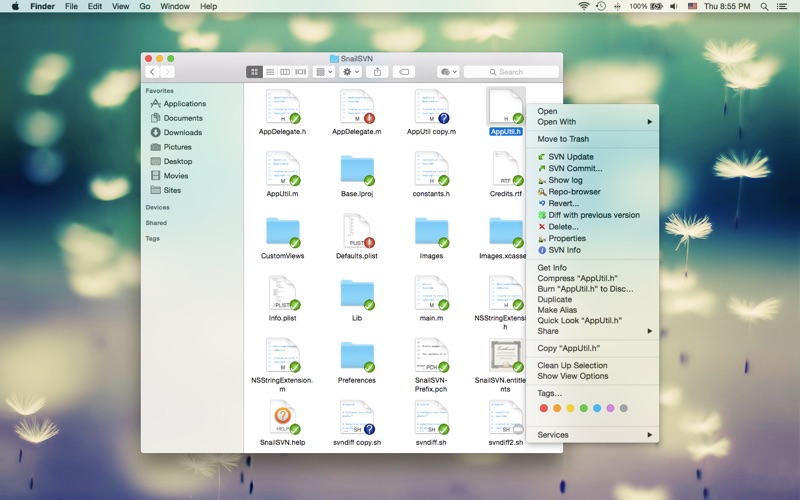
SnailSVN is a TortoiseSVN-like Apache Subversion (SVN) client, implemented as a Finder extension. SnailSVN allows you to access the most frequently used SVN features via the Finder context menu (right click). SnailSVN also adds icon overla…
Release notes parsed from trusted records and kept on this page. History provides context; a future Watch alert starts from a fresh baseline.
Be the first to request it
Request the same source-linked purchase brief shown in the completed example below. Your email starts the request and receives the result.
Want it sooner? Independent demand changes queue priority.
Completed example · CleanShot X data
Everything below belongs to CleanShot X. It is a real, completed example—not research about SnailSVN Lite – SVN for Finder.

CleanShot X
Example data
 Completed research example
Most repeated positive
13authors
“cleanshotx - scrolling screenshots is much more robust.”Evidence: r/macapps · Shottr vs CleanShot X in 2026. Which one are you actually sticking with?
Most repeated concern
16authors
“I don't think it makes sense to spend the money for Cleanshot when other apps do most of what it does for a lot less or free.”Evidence: r/macapps · Shottr vs CleanShot X in 2026. Which one are you actually sticking with?
Product context
Official or maker-supplied product information. It is kept separate from buyer evidence and independent purchase verification.
SnailSVN is a TortoiseSVN-like Apache Subversion (SVN) client, implemented as a Finder extension.
SnailSVN allows you to access the most frequently used SVN features via the Finder context menu (right click).
SnailSVN also adds icon overlays to your SVN working copies in Finder. It tracks your SVN working copies and updates the icon overlays automatically, giving you visual feedback of the current state of your working copies.
In a few steps, you can start using SnailSVN Lite easily: \1. Enable "SnailSVN Lite Extension" in "System Preferences » Extensions". \2. Checkout a SVN working copy with SnailSVN (File » SVN Checkout...) or add an existing SVN working copy to SnailSVN Lite. \3. Navigate to your working copy in Finder and right click to access SnailSVN functionalities.
* FAQ
Q: What's the difference between SnailSVN Lite and SnailSVN full version? A: SnailSVN Lite supports only one working copy, but SnailSVN full version supports unlimited working copies. If you are working on multiple SVN working copies, please purchase SnailSVN full version (search for "SnailSVN" on the Mac App Store).
Q: There is no icon overlays / context menu for the files? A: Please make sure that you've enabled "SnailSVN Lite Extension" in "System Preferences » Extensions", and also make sure that you've added the working copy to SnailSVN Lite Preferences. If your SVN working copy is monitored by multiple Finder extensions, please make sure that SnailSVN Lite Extension comes first in "System Preferences » Extensions » Finder", you can drag and drop the extensions to adjust the order. If the problem persists, please disable "SnailSVN Lite Extension" in "System Preferences » Extensions" and then enable it again. The last resort is to relaunch Finder or restart your computer.
Q: What kind of URL schemes does SnailSVN Lite support? A: SnailSVN Lite supports the following URL schemes: • http:// • https:// • svn:// • svn+ssh:// • file://
Q: Does SnailSVN support shelving (shelve & unshelve)? A: Yes. Please switch to Subversion 1.14.x or later in order to support shelving. (SnailSVN Preferences -> SVN Settings -> Settings) The shelve & unshelve menu items are available in "SnailSVN Preferences -> Working Copies", the commit window, the "Check for modifications" window and the Finder context menu.
Q: How to mark multiple files as checked in the SVN commit window? A: Please select the files you would like to commit and press the space bar (or right click and select "Mark as selected" from the context menu).
Q: Does SnailSVN work well with other SVN clients? A: SnailSVN should work with any kinds of SVN clients that is compatible with Subversion 1.7.x, 1.8.x or 1.9.x, from the command line client to the GUI apps.
Q: Does SnailSVN work for file managers other than Finder? A: SnailSVN is primarily a Finder extension, so it is likely that it will not work for other file managers.
Q: Can I use SnailSVN as a standalone SVN client? A: Yes. Most SnailSVN functionalities are available in "SnailSVN Preferences -> Working Copies", the commit window and the "Check for modifications" window.
• Minor UX improvements
More Developer Tools apps from the directory.