VSCO Releases Studio Pro Desktop, Its First Standalone Native Photo Editor for Mac
On 17 November 2026, VSCO released Studio Pro Desktop, its first standalone photo editor for Mac. This source-based brief summarizes what official pages, VSCO’s press release, and contemporary coverage say the Apple silicon app can do, how it is distributed, and what remains free versus paid. It is not a hands-on test.
VSCO Releases Studio Pro Desktop, Its First Standalone Native Photo Editor for Mac
A source-based brief built from VSCO’s official pages, its press release, and press coverage. It is not a hands-on test: nothing here describes speed, image quality, stability, or color accuracy from personal use.
On 17 November 2026, VSCO launched Studio Pro Desktop. The company’s official product page describes Studio Pro as a “completely new photo editor on desktop Mac and iPhone, powered by an all-new image engine built for speed.” The Mac pitch is “hundreds of RAW files, one pass”: import straight from the card, choose a look, and batch process the shoot in real time. For iPhone, the page says 100+ photos at once.
The same day, VSCO issued a press release from San Francisco (12:00 ET, via PR Newswire), titled “VSCO Reimagines How Photographers Edit and Deliver Their Work with Launch of Studio Pro Desktop.” It calls the app “its first standalone photo editor for macOS” and places the launch after “the June 2026 introduction of the company’s Studio Pro mobile app” and the announcement of VSCO One. The iPhone app’s App Store listing shows a first release of 17 June 2026, which fits that timeline. VSCO also published a getting-started guide dated 17 November. 9to5Mac (Marcus Mendes, 9:00 am PT) reported on the launch that morning, and Digital Trends (Varun Mirchandani) offers secondary confirmation.
What it is, how it ships, and who can run it
According to VSCO’s FAQ, Studio Pro is “a batch photo editing app for iPhone and Mac, built for working photographers.” It combines 200+ VSCO presets, manual editing tools, and delivery through VSCO Galleries “into one fast workflow, powered by an all-new image engine.”
Distribution. The “Download for Mac” button on the product page points to a direct installer (a .dmg file). The App Store badges on the same page point to the existing iPhone listing, “VSCO Studio Pro: Photo Editor.” That listing is iPhone-only, requires iOS 16.6 or later, and was at version 1.5.0 as of 9 November 2026. A search of the Mac App Store catalog on 18 November did not return a Mac listing for Studio Pro. VSCO’s downloads page says the app is “available on Mac and iOS from the Apple App Store,” but that wording should not be read as proof of a Mac App Store edition. Based on what could be verified, the Mac app is a direct download.
Hardware. The official FAQ says Studio Pro Desktop is “a desktop photo editor for Mac computers with Apple silicon (M1–M6).” Intel Macs are not listed. The official pages checked for this brief do not state a minimum macOS version. Digital Trends reports that the app “currently requires an Apple Silicon Mac running macOS 14 Sonoma or later, with no Windows version available.” That is Digital Trends’ claim and was not found on the official FAQ. A Mac file size and Mac version number were not confirmed either.
Versus the other VSCO products. Studio Pro is “a dedicated app for iPhone and Mac,” separate from the main VSCO app. The main app, per VSCO, “is built for mobile editing, sharing, and connecting with a photography community, and it syncs with Web Studio for editing in your browser on Mac or PC.” VSCO Web Studio is a browser editor for Mac and PC that needs no download, and VSCO describes it separately from Studio Pro. The getting-started guide states: “These are two different apps with different purposes. You don’t need to choose between them. Most photographers will use both.”
What the Mac app can do, per official materials
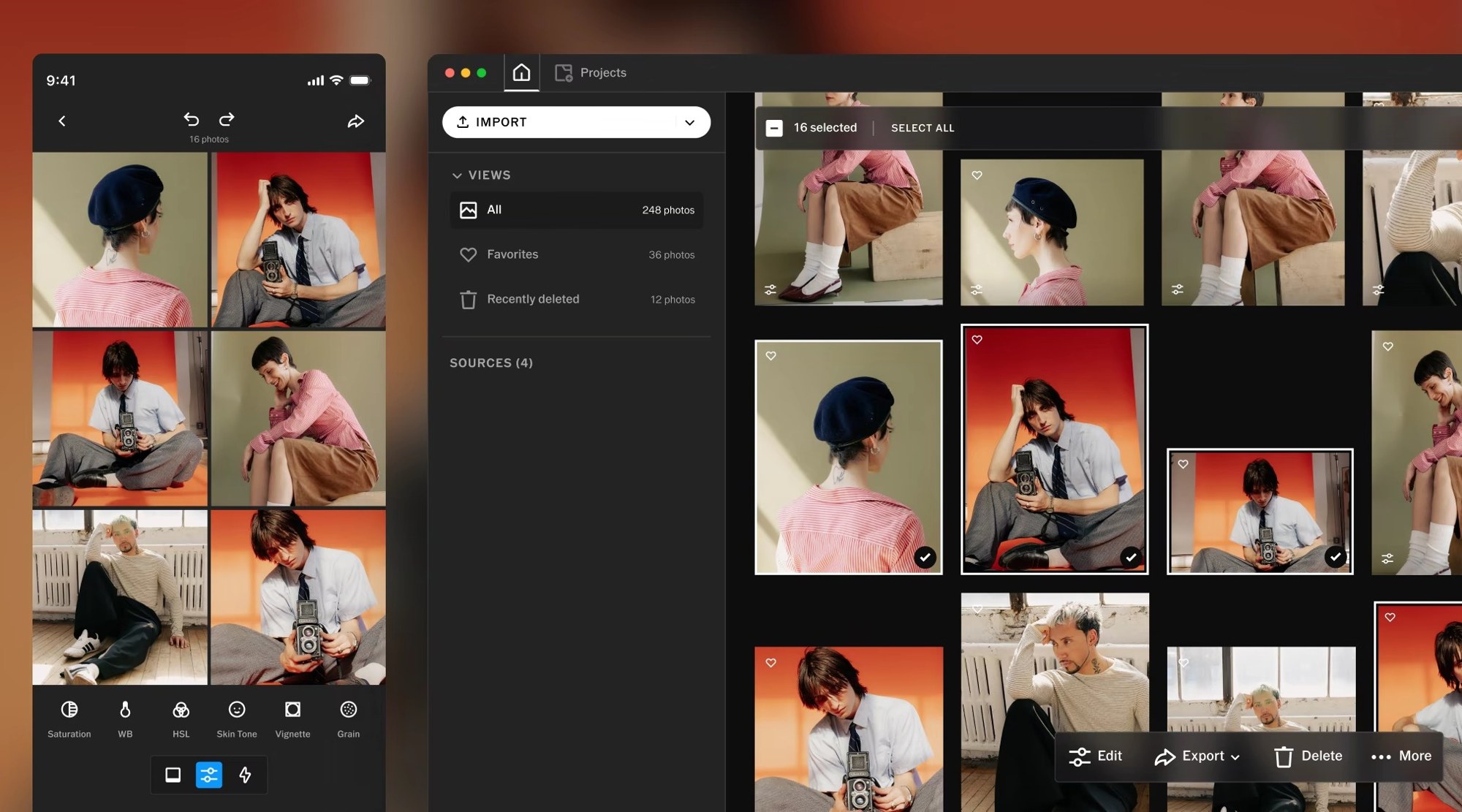
Import. The getting-started steps cover importing from the Mac, a connected SD card, or the file system. 9to5Mac lists Apple Photos, local folders, SD cards, and external drives, and says users can choose whether to work with files in their original location or copy them elsewhere. Digital Trends also mentions cameras. 9to5Mac adds that the app supports keyboard shortcuts similar to those in other popular photo editors; no shortcut list appears in the sources reviewed.
RAW and batch editing. The FAQ says: “Yes, on Mac. Studio Pro for Mac edits RAW files from cameras that macOS supports,” and points to Apple’s list of supported RAW formats. The press release and 9to5Mac cite 800+ cameras across 20 brands; no camera list was published in the sources reviewed. The guide also mentions DNG editing. On iPhone, Studio Pro edits and exports JPEG and HEIC.
Batch limits differ by platform and should not be merged. The press release says “Edit up to 500 images at once.” The getting-started guide lists up to 500 RAW on Mac and 100 JPEG or HEIC photos at once, and the product page says “100+” for iPhone. 9to5Mac describes a range of two to 500 images.
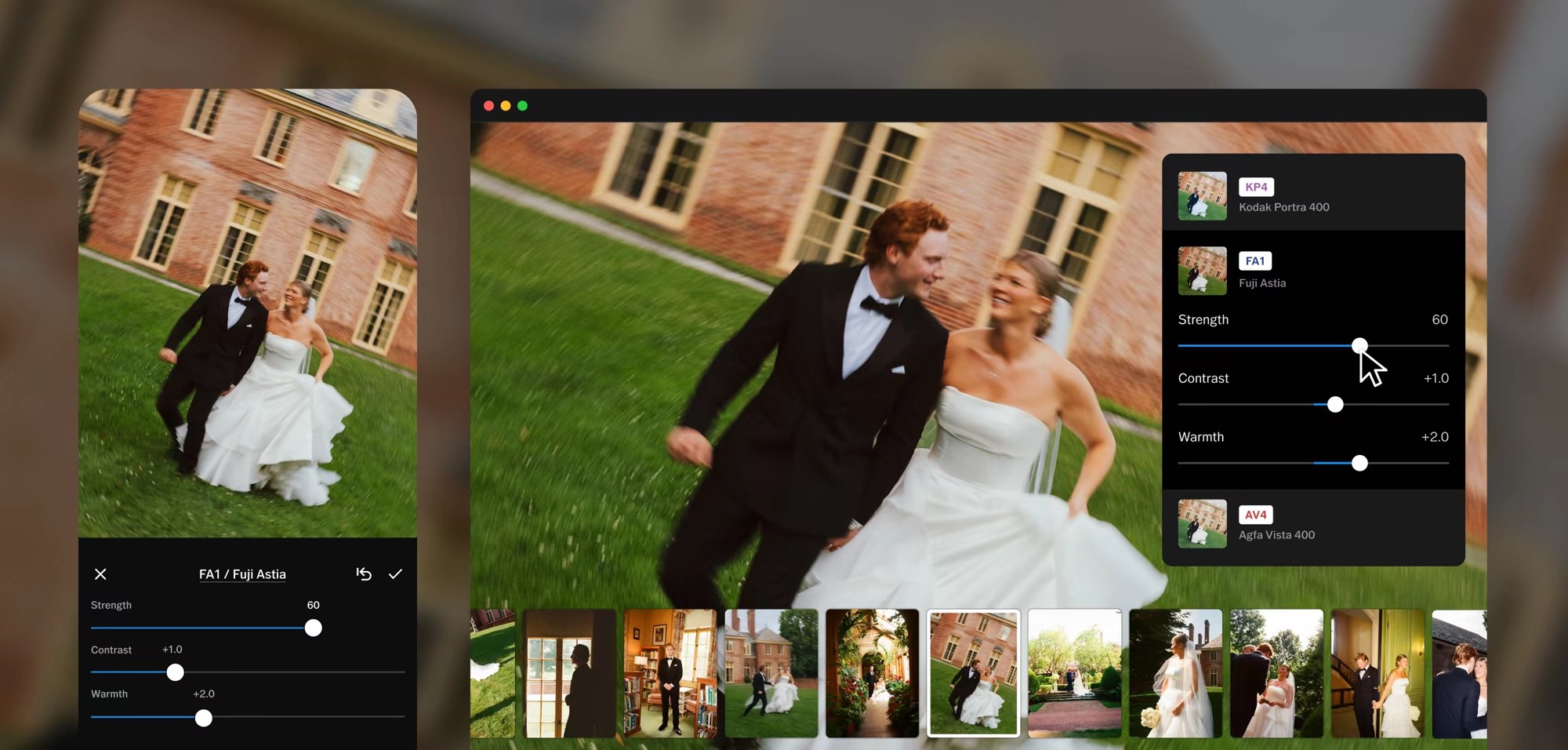
Presets. The catalog is 200+ looks, including Film X and Pro presets. The press release names film-inspired looks “including Kodak Portra, Kodachrome, Fujifilm Velvia and Kodak Tri-X.” There is also an exclusive preset, IOE1 PRO, developed with photographer Joe Greer and described as warm tones, crisp details, subtle saturation, and a film feel. VSCO states that “VSCO Film presets for Lightroom and Capture One are a separate product,” so those are not part of Studio Pro. The guide lists swipe-through preset preview and copy-and-paste editing.
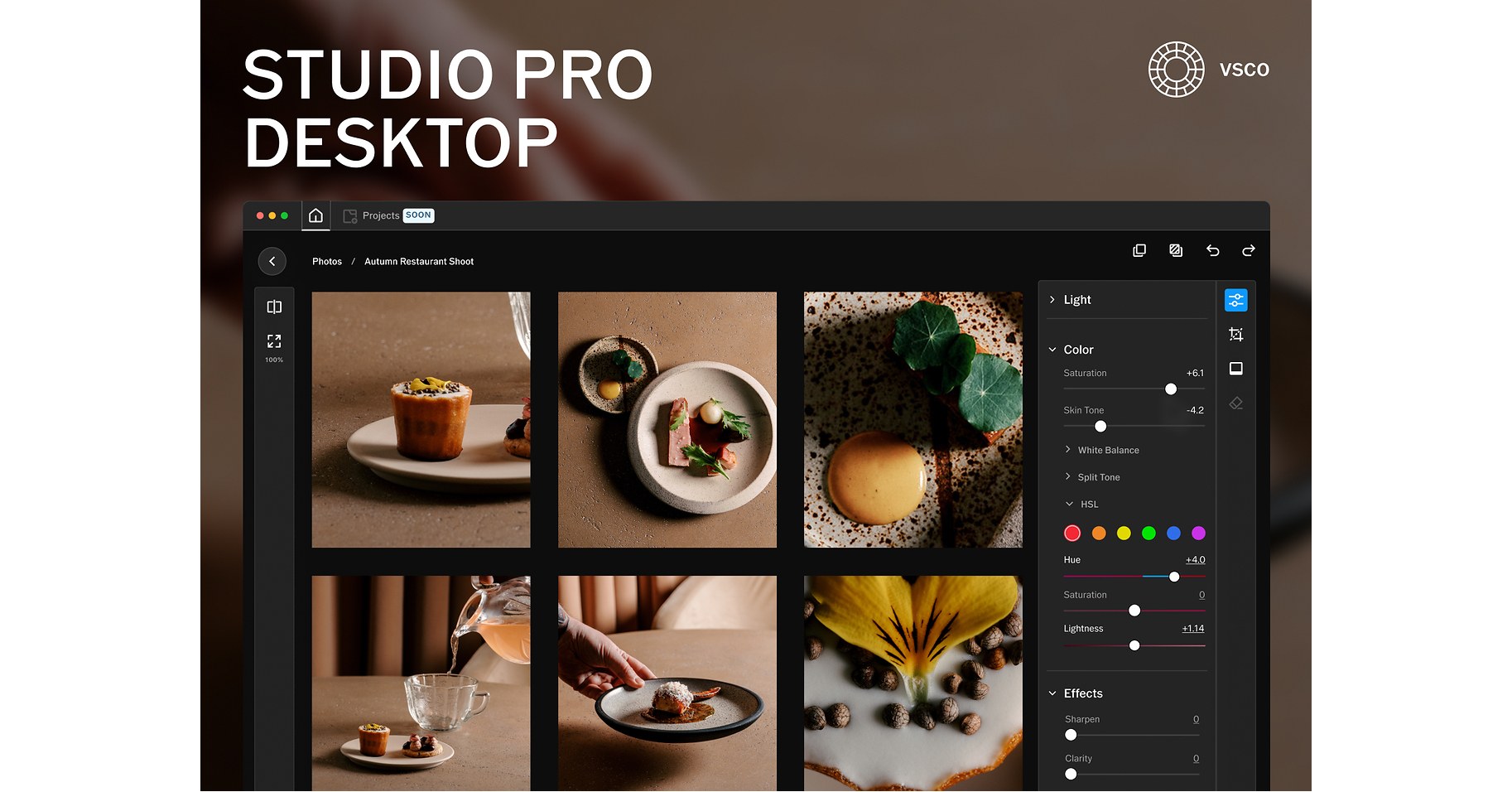
Manual tools. The Mac-specific FAQ lists “exposure, contrast, highlights, shadows, white point, black point, saturation, white balance (temperature and tint), HSL, skin tone, sharpen, clarity, vignette, grain, and fade.” 9to5Mac’s list is similar and notes grain adjustments for strength, size, and color.
Engine and workflow. The press release credits VSCO’s new Reflex image engine for fast, responsive editing. 9to5Mac reports that the app combines Apple’s Core Image RAW processing with Reflex, which handles presets and adjustments; the Core Image detail comes from 9to5Mac, not the official FAQ. Editing is non-destructive, with an autosave status indicator, and the guide says you can open and fine-tune a single image from a batch without losing your place. Long-running edits, exports, and uploads can be cancelled.
Export. Per the FAQ: “JPEG and HEIC. You can control dimensions, quality/compression, and file naming at export.” The guide adds file size control. 9to5Mac mentions individual or batch export and resizing presets for web, social media, and client delivery. TIFF, PNG, and Photoshop export are not in the official FAQ.
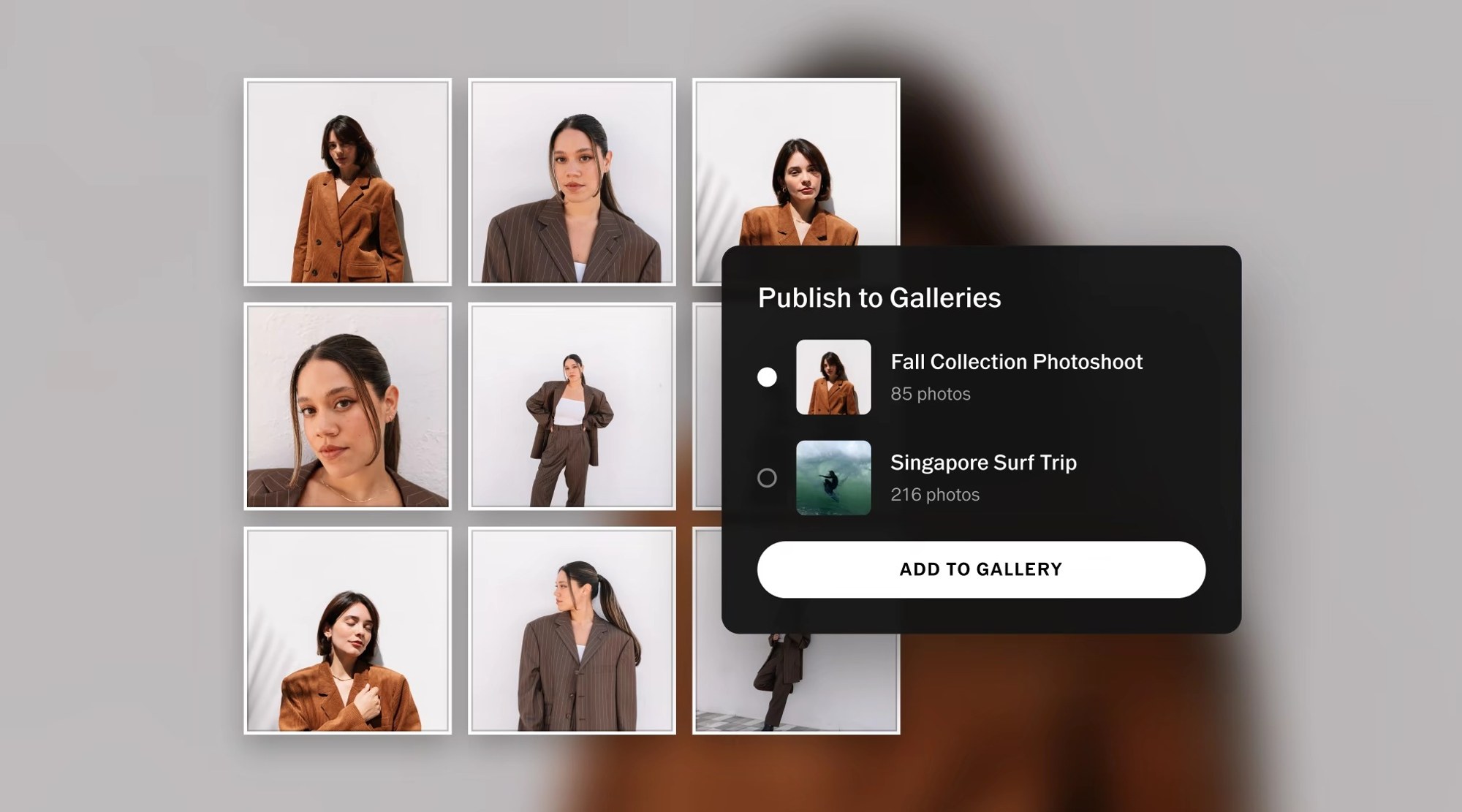
Delivery. After editing, users can publish to VSCO Galleries so clients can view and download full-resolution photos without a separate export-and-upload step. A separate path lets users publish up to 10 images at once to a VSCO profile.
Pricing and plan limits
Studio Pro is free to download with a VSCO account, but the guide says “the full editing suite and export features require a Pro or VSCO One membership.” The Studio Pro FAQ says the free tier “includes 5 presets, basic editing tools, single image editing, and VSCO Galleries integration.” Pro and One “add the full suite of editing tools and presets, batch editing, Style Match on iPhone, expanded export options, and more.” The general VSCO “Starter” plan mentions 15 presets, but that is a different context from the Studio Pro free tier.
From the official plans page:
| Plan | Price | Notes |
|---|---|---|
| VSCO Pro, annual | $4.99/month, billed as $59.99 annually (Save 61%) | 7-day free trial |
| VSCO Pro, monthly | $12.99/month | 7-day free trial |
| VSCO One | $41.67/month, billed as $499.99 annually | Annual only; 30-day cancellation window for a full refund |
The press release and 9to5Mac say Pro “starts at $4.99 monthly or $59.99 annually.” The $4.99 figure is the annual plan expressed per month, not a month-to-month price; the confirmed month-to-month price is $12.99. The VSCO Pro page rounds the annual plan to $5.00/month. The iPhone listing’s in-app purchases (Yearly Pro $59.99, Monthly Pro $12.99) match the plans page, but there is no Mac App Store price to cite.
VSCO One includes everything in Pro plus full Workspace (leads, quotes, contracts, invoicing, bookings). VSCO says One is available on iOS and desktop only, and Pro is described the same way. Free and Pro members get a simplified Workspace for basic job tracking. On Galleries, VSCO says it “is free for professional photo delivery, and a VSCO Pro membership adds unlimited galleries, unlimited photos, and collaborative uploads.”
What is not included yet
-
Style Match is available on iPhone and, per the FAQ, “coming soon to the Mac app.” VSCO defines it as a feature that “analyzes any image and recreates its color, tone, and mood using a tailored combination of presets and tools.”
-
No edit sync. The FAQ says: “Edits do not sync between the two just yet, so each device works with its own photos.” Both versions publish to VSCO Galleries.
-
Platform. There is no Windows version, per Digital Trends, and Intel Macs are not listed.
-
Roadmap items. 9to5Mac reports VSCO is working on bloom and halation effects, curves, masks, and a remove tool, plus organizational features including projects and star-rating accept/reject culling. Official copy only says “with even more on the way.” A “Projects soon” badge appears in the official press image. None of this is available today.
Who may want to look, and what to read first
Based on the published limits, Studio Pro Desktop appears aimed at Apple silicon Mac users who already like VSCO’s looks and want a fast batch-and-deliver workflow ending in Galleries. For them, the free tier is a low-commitment way to see the interface, though batch editing and the full preset catalog sit behind Pro or One.
It does not yet appear to be a full cataloguing RAW lab, since curves, masks, a remove tool, and culling are listed only as upcoming. Anyone who needs Style Match on the desktop, edit sync between Mac and iPhone, an Intel or Windows build, or a documented macOS requirement may want to wait. This brief makes no comparison with Lightroom, Capture One, Photomator, or Affinity, since that would require testing.
For reading order, start with the official product FAQ for the Mac tool list and platform limits, then the getting-started guide for batch limits and export, then the plans page for pricing. The 9to5Mac report adds import, engine, and roadmap detail, and Digital Trends is useful as secondary confirmation.