Most repeated positive
13authors
A complete feature set
“cleanshotx - scrolling screenshots is much more robust.”Evidence: r/macapps · Shottr vs CleanShot X in 2026. Which one are you actually sticking with?

Convert videos to high-quality GIFs. Gifski converts videos to animated GIFs that use thousands of colors per frame. This is made possible by some fancy features for efficient cross-frame palettes and temporal dithering. Keep in mind that…
Release notes parsed from trusted records and kept on this page. History provides context; a future Watch alert starts from a fresh baseline.
Be the first to request it
Request the same source-linked purchase brief shown in the completed example below. Your email starts the request and receives the result.
Want it sooner? Independent demand changes queue priority.
Completed example · CleanShot X data
Everything below belongs to CleanShot X. It is a real, completed example—not research about Gifski.

CleanShot X
Example data
 Completed research example
Most repeated positive
13authors
“cleanshotx - scrolling screenshots is much more robust.”Evidence: r/macapps · Shottr vs CleanShot X in 2026. Which one are you actually sticking with?
Most repeated concern
16authors
“I don't think it makes sense to spend the money for Cleanshot when other apps do most of what it does for a lot less or free.”Evidence: r/macapps · Shottr vs CleanShot X in 2026. Which one are you actually sticking with?
Product context
Official or maker-supplied product information. It is kept separate from buyer evidence and independent purchase verification.
Convert videos to high-quality GIFs.
Gifski converts videos to animated GIFs that use thousands of colors per frame. This is made possible by some fancy features for efficient cross-frame palettes and temporal dithering.
Keep in mind that Gifski is a converter, not a GIF creator. It will never support features like adding text and elements to a GIF. That's better done in a proper video editing app.
■ Features
- Video trimming and cropping - Precise control of dimensions - Control over GIF looping and bouncing (yo-yo) playback - Adjust the speed - Loop delay - GIF preview before converting - Copy, share, or drag the GIF - Share extension - System service - Optionally produce smaller lower quality GIFs - Automatically save GIFs to Downloads - Generate up to 50 FPS GIFs (for showing off design work on Dribbble) - Export modified video without converting to GIF - Shortcuts support
■ To convert, either:
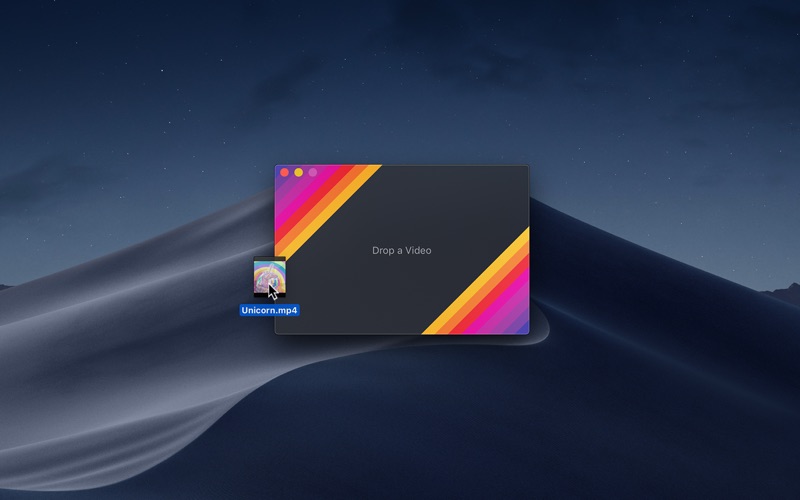
- Drag and drop your video onto the window or the Dock icon. - Click the “Open” button in the window or in the “File” menu and then choose a video. - Right-click a video in Finder and select this app in the “Open With” menu.
Gifski supports all the video formats that macOS supports (.mp4 or .mov with H264, HEVC, ProRes, etc). The QuickTime Animation format is not supported. Use ProRes 4444 XQ instead. It's more efficient, more widely supported, and like QuickTime Animation, it also supports alpha channel.
■ Share extension
Gifski includes a share extension that lets you share videos to Gifski. Just select Gifski from the Share menu of any macOS app.
You can share a macOS screen recording with Gifski by clicking on the thumbnail that pops up once you are done recording and selecting “Share” from there.
■ System service
Gifski includes a system service that lets you quickly convert a video to GIF from the “Services” menu in any app that provides a compatible video file.
■ Bounce (yo-yo) GIF playback
Gifski includes the option to create GIFs that bounce back and forth between forward and backward playback. This option doubles the number of frames in the GIF so the file size will double as well.
■ Tips
‣ Quickly copy or save the GIF
After converting, press Command+C to copy the GIF or Command+S to save it.
‣ Change GIF dimensions with the keyboard
In the width/height input fields in the editor view, press the arrow up/down keys to change the value by 1. Hold the Option key meanwhile to change it by 10.
■ FAQ
‣ The generated GIFs are huge!
The GIF image format is very space inefficient. It works best with short video clips. Try reducing the dimensions, FPS, or quality.
‣ Why are 60 FPS and higher not supported?
Browsers throttle frame rates above 50 FPS, playing them at 10 FPS.
■ Support
Click the “Send Feedback” button in the “Help” menu in the app.
- Bug fixes.
More Video Editing apps from the directory.