Unclutter 2.3 Adds a Resizable Window, 22 Shortcuts Actions and Markdown Notes to the Mac Menu-Bar Utility
Unclutter 2.3 is a mid-November 2026 update to the long-running Mac menu-bar utility. The official changelog lists version 2.3.0d on 17 November 2026; the “Meet Unclutter 2.3” announcement followed on 20 November. New items include a window that can be resized from any edge or corner, 22 Shortcuts actions (macOS 13 or later), clipboard search, a redesigned Files list view, optional screenshot saving into Files (built-in on the website and Setapp editions), Markdown note files alongside plain text, and a stated memory-use reduction. This is a source-based brief from official Unclutter pages, not a hands-on test.
Unclutter 2.3 Adds a Resizable Window, 22 Shortcuts Actions and Markdown Notes to the Mac Menu-Bar Utility
Unclutter 2.3 is a substantial update to the long-running native Mac utility, released in mid-November 2026. The developer’s announcement, Meet Unclutter 2.3, was posted on November 20, 2026, and opens with “Unclutter 2.3 is here, ready for macOS 27.” The changelog entry for “Unclutter 2.3.0d” is dated November 17, 2026, and introduces the release as “our biggest update in years, bringing improvements to every part of the app.” Two companion guides, on Shortcuts and on saving screenshots, carry the same November 17 date as the changelog.
This is a source-based brief built from official Unclutter pages. It is not a hands-on test, and no 9to5Mac, MacRumors, or MacStories coverage was used. Because the changelog and announcement dates differ, they are reported separately here rather than as a single ship date. Setapp’s catalog listed “Version 2.3.0” without the “d”; the sources reviewed do not explain the suffix.
The app, briefly
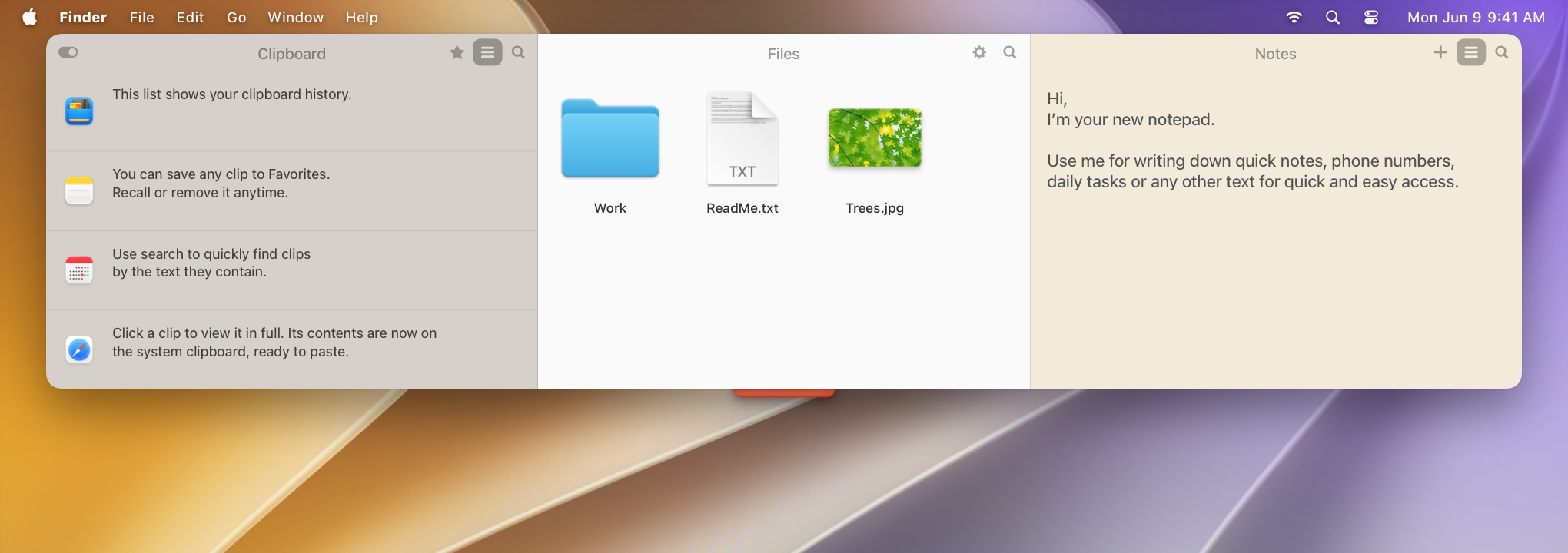
According to the official homepage, Unclutter is a menu-bar utility combining Clipboard, Files, and Notes: “Notes, files, and clipboard history — one gesture away.” By default it opens when you move the pointer to the top of the screen and scroll down, and other open methods exist. Panels can be rearranged, resized with dividers, turned off, or dragged out to float on top.
The site says “Unclutter runs natively on both Apple Silicon and Intel-based Macs” and “Requires macOS 10.13 or later.” The changelog adds that the app is now compatible with macOS 27 Golden Gate. Listed languages are English, German, Spanish, French, Italian, Portuguese, Chinese, Japanese, Russian, Polish, and Ukrainian.
Interface changes
The announcement says the window “can now take up as much horizontal space as you like,” and that you can resize it by dragging any edge or corner. Dividers between panels still adjust each panel’s share of the space. This supersedes older features-page wording that described only changing height by dragging a label.
The announcement also lists redesigned toolbars, icons, shadows, and menus. The app icon adapts to Default, Dark, Clear, or Tinted appearances.
The developer describes smoother open and close animation and says dragging panels out and back is “faster and more fluid.” These are the developer’s claims; this brief did not evaluate them.
Shortcuts: 22 actions
The Shortcuts guide describes 22 actions across Files, Notes, and Clipboard, runnable from Spotlight or Siri. The new actions require macOS 13 Ventura or later, which is separate from the app’s own macOS 10.13 minimum.
-
Files: finding files, getting a file (with optional alias or symlink resolution), showing a file in Unclutter or Finder, getting the Files storage folder, and moving a file to Trash (with optional confirmation).
-
Notes: finding notes, creating a note, getting or replacing text, adding text at the beginning or end with a customizable separator, opening a note, getting the Notes folder, and deleting a note (with optional confirmation).
-
Clipboard: finding History or Favorite clips, getting clip content, copying a history or favorite clip back to the system clipboard, saving a history clip to Favorites, and deleting history or favorite clips. Search can use text, URLs, email addresses, color codes, filenames, and similar content.
The guide states “Shortcuts support is enabled by default.” Settings → Advanced → Enable Scripting & Automation controls it, with access configured separately for Files, Notes, and Clipboard History and Favorites; AppleScript can be managed independently. Two limits apply: “Protected Clipboard History entries aren’t accessible through Shortcuts,” and “For security, Unclutter’s Shortcuts actions require your Mac to be unlocked when they run.”
Clipboard, Files, and Notes
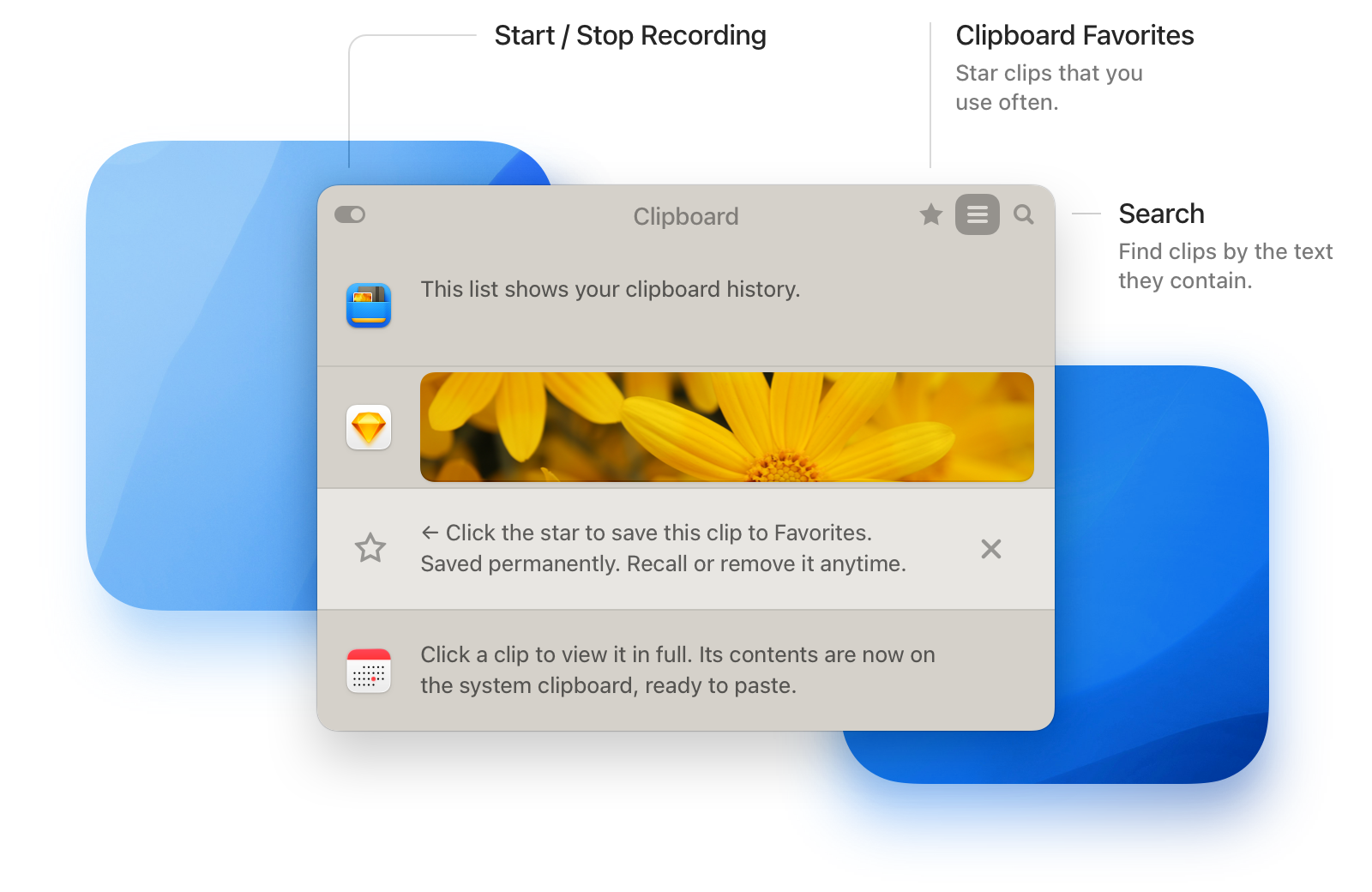
Clipboard. The panel has an updated layout and its own Search field. History and Favorites can be searched by text, results update as you type, and selecting a result puts it back on the clipboard. Color handling adds the CSS formats HSL, OKLCH, and Display P3, and swatches show transparency. The changelog says “copying a color clip preserves the original code.”
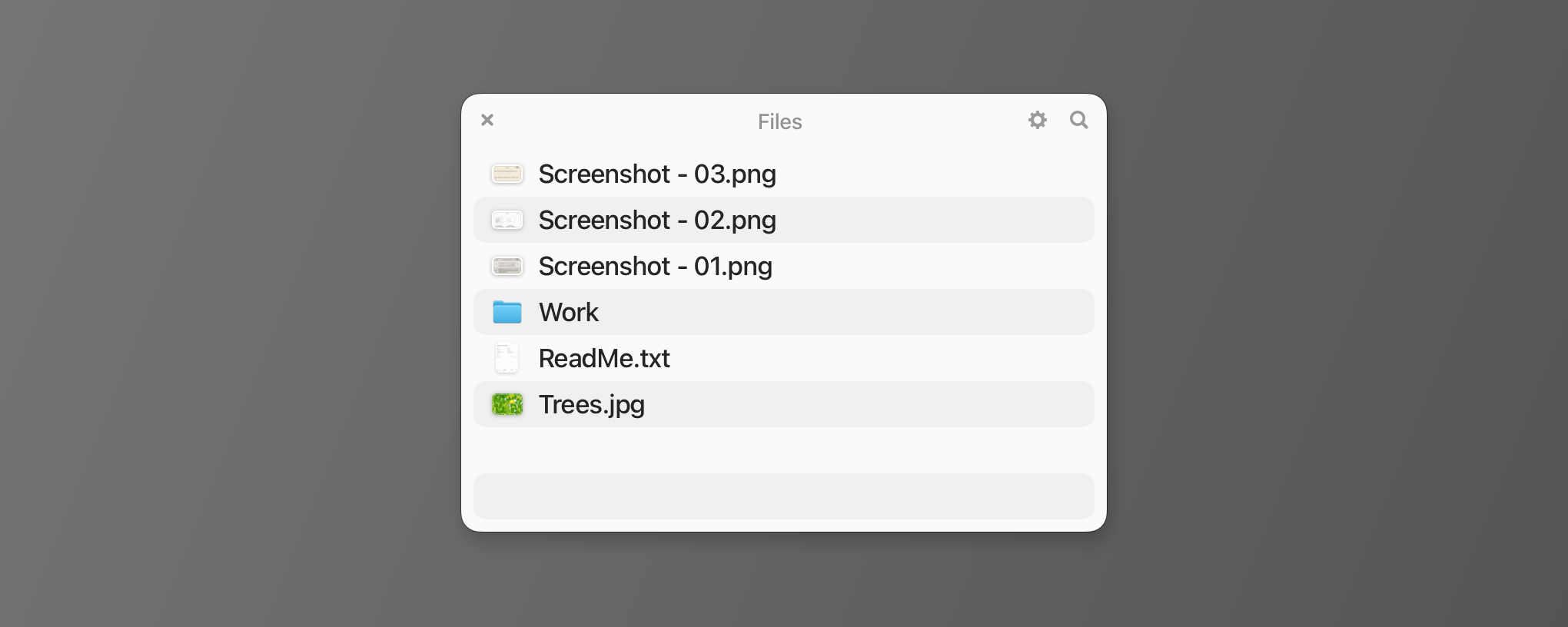
Files. The list view is described as a “redesigned, more Finder-like list view,” with alternating row backgrounds, larger type, and clearer selection highlighting in light and dark appearances.
The new screenshot option is where the editions differ:
-
Website and Setapp editions: a built-in “Save screenshots to Unclutter Files” setting under Settings → Files, which follows the folder chosen under “Store files in.”
-
Mac App Store edition: no built-in toggle is described. Instead, you set macOS’s screenshot location (Shift-Command-5 → Options → Save to) to the Unclutter Files folder. That manual setting does not update automatically if the Files folder later changes.
The guide adds that the Screenshot toolbar requires macOS 10.14 Mojave or later, and that disabling “Show Floating Thumbnail” avoids the delay while the thumbnail is visible.
Notes. Markdown (.md) files now sit alongside .txt files, both can live in the same panel, and the extension for new notes is chosen in Settings → Notes. The announcement is explicit that “Unclutter Notes remains a simple plain-text editor”; nothing in the sources describes a rendered Markdown preview. The changelog adds that Notes search now uses Apple’s SearchKit, that conflicting edits produce a separate backup file, and that if a save fails you can retry or move your notes to another folder.
Under the hood
The two official texts word the memory claim differently, so each is quoted separately. The announcement says the update is “reducing memory usage by 200–300 MB on average.” The changelog says “200-300Mb less in average.” Both are the developer’s stated figures, not measurements made for this article. The changelog also lists crash fixes.
Cloud sync, launch at startup, and multi-display support are described on the existing homepage and features pages, not in the 2.3 changelog, so they should not be read as new in this release.
Pricing and distribution
The homepage describes a “Lifetime license — one payment, no renewals,” with “Try 10 Days Free,” “No card required,” and a “30-day money back guarantee.” The listed website price, from the page’s structured data and checkout fallback, is $19.99 USD; no promotional price was confirmed.
Under the refund policy, updated February 22, 2018, direct purchases from Eugene Krupnov may be refunded if you email support within 30 days; Mac App Store and other third-party purchases follow those stores’ policies. The educational discount page says students and teachers can send an Educational ID for a 30% discount.
Unclutter is also available through the Mac App Store and Setapp. No current Mac App Store price was confirmed. Setapp’s catalog showed “From $14.99/month” for its membership, which is not Unclutter’s license price, and listed macOS 12.0 or later for that edition, unlike the website’s macOS 10.13 minimum. The homepage’s “4.6 out of 5 rating” and “200K+ downloads” are official-site figures, not independently verified.
Who might look at it now
Existing users on 2.2.x builds are the obvious audience, since the changelog frames 2.3 as a broad update. People who wanted Shortcuts access, or Markdown files in the same panel as plain-text notes, now have both. Anyone who wants screenshots off the Desktop can use the built-in setting in the website or Setapp edition, or point macOS screenshots at the Files folder in the Mac App Store edition.
It is worth being clear about what 2.3 is not: it is not a new app, Notes remains a simple plain-text editor, and Shortcuts will not expose protected clipboard history entries.
For a first read, start with the announcement, then the changelog for the detailed list, then the Shortcuts and screenshot guides for setup specifics.